Documents
Documents is a new page in the sidebar where you write and organize long-form work in folders, and it saves as you type.
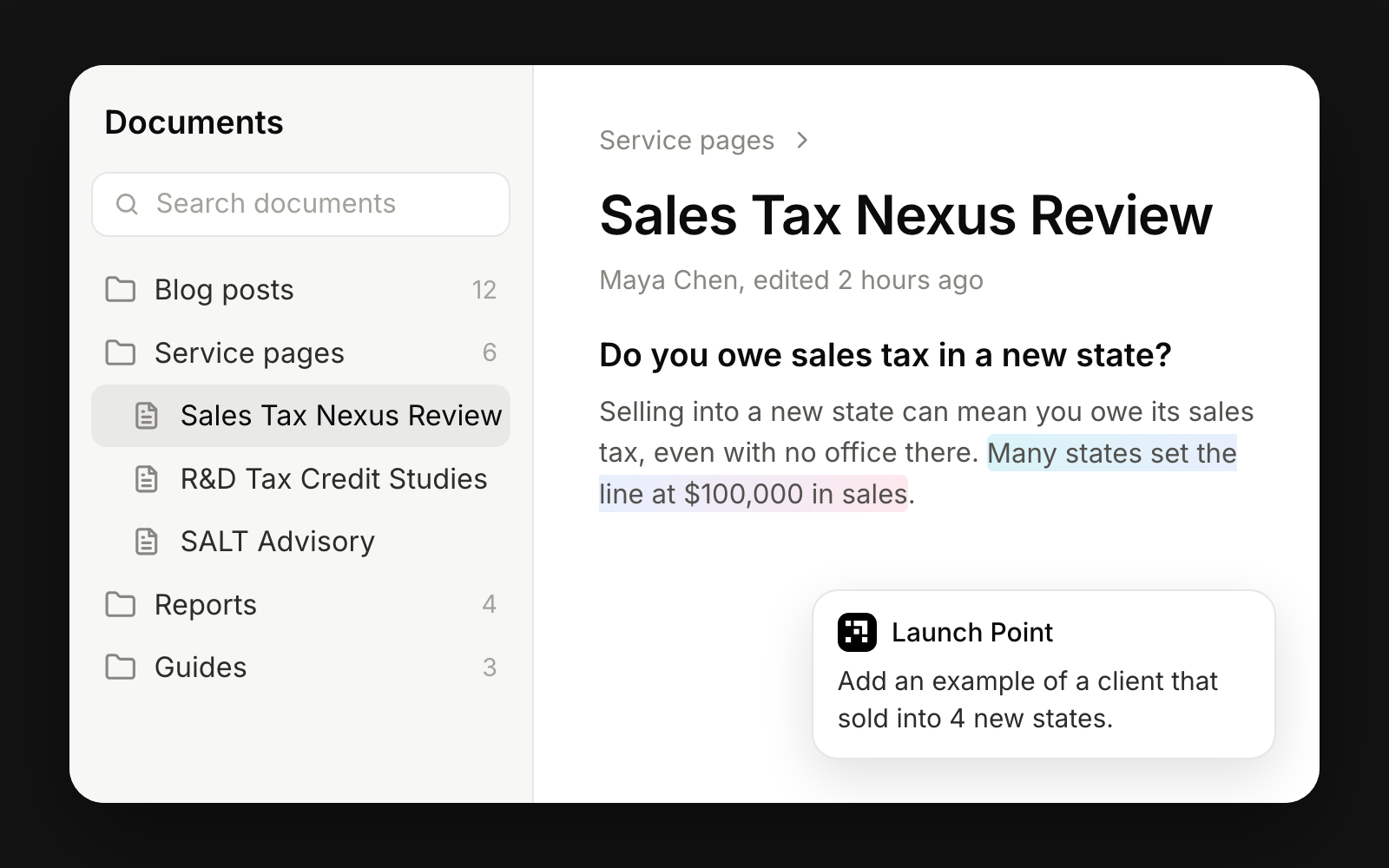
Most marketing work ends up as a document: a blog post, a campaign brief, a launch plan, a report for leadership. Launch Point could already plan that work with you and talk it through, but the writing happened somewhere else. Documents brings it into the workspace, beside the chat, the tasks and the knowledge base it draws on.
What is Documents?
Documents is a page in the sidebar, just above Knowledge, where you and Launch Point write long-form work together. Every document saves as you type and keeps its history, so you can open an earlier version and restore it. You can sort documents into folders, switch between a list and a grid, and right-click any one to rename it, make a copy, copy its link or delete it.
Documents sit apart from your knowledge base on purpose. Knowledge holds what your team has agreed, like your positioning and your voice. Documents hold the work in progress that uses it.
How do you write a document with Launch Point?
Ask for it in any chat. Something like "Write a blog post on choosing a CRM for a 20-person sales team" opens a new document beside the conversation, and you watch it being written section by section. Ask for changes in the chat, or click into the text and edit it yourself.
You can also start one on the Documents page, from a blank page or a template.
What are templates?
A template is an example document for work your team does often, such as a blog post or a brief. It sets the sections and the fields that go with them, like a summary or an SEO title. When Launch Point writes on a template, it follows that shape and fills in the fields. Owners and admins can turn any document into a template.
How does review work?
Select any words to comment on them, and type @ to bring a teammate in. Each comment stays attached to its words as the text changes around it. Mention @Launch Point in a comment to ask about a passage or have it rewritten.
For a full read, click Ask for a review. Launch Point checks the whole document against your knowledge base and writing guidance and leaves comments marked must fix, should fix or optional. Click Fix it on the ones you agree with. When Launch Point can't confirm a fact in a draft, it leaves a comment on those words asking you, so nothing is guessed.
How do you share or publish a document?
Click Share to invite teammates as viewers, commenters or editors, or turn on a view-only link that works without signing in. The Export tab downloads the document as Word, PDF or Markdown.
If your workspace has Webflow connected, the Publish tab sends the document to your site's CMS with your own Webflow permissions. It checks first for anything that would stop the post going live, like a missing summary or an unfinished section.
Why we built it
Writing takes up most of a marketer's week, and it is where AI help usually falls apart. The draft lives in one tool, the context in another and the feedback in a third. With the document beside the chat and the knowledge base, every draft starts from what your team has already decided, and every round of feedback happens in one place.
Questions people ask
Is Documents the same as the knowledge base?
No. The knowledge base is your team's reference library, and Launch Point reads it before it writes. Documents are the drafts you are working on now.
Does Launch Point publish anything on its own?
No. A document reaches your website only when someone with Webflow access publishes it from the Publish tab.
Which formats can you export?
Word, PDF and Markdown, from the Export tab in the Share menu.
Learn how to use it
Read the help article